Transferring Pictures from Computer to iPhone
How to transfer pictures from my Windows computer to my iPhone? I have some favorite pictures on my computer and I want to carry them on my iPhone.
✍: FYIcenter.com
Transferring pictures from your Windows computer to your iPhone cannot be done only with the USB (Universal Serial Bus) cable. You need to use the USB cable connection and run iTunes.
1. Connect your iPhone to your Windows computer with the USB cable.
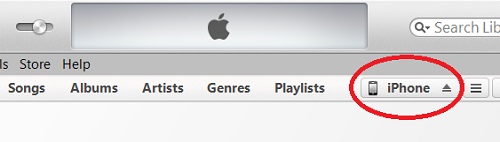
2. Run iTunes from your computer and click on the "iPhone" tab.
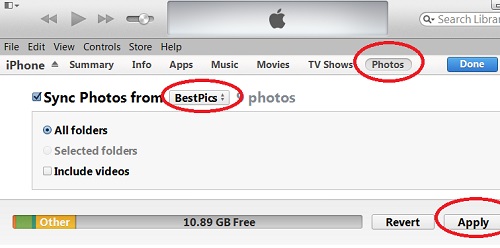
3. Click the "Photos" tab iTunes displays the default photo sync location, C:\Users\userid\Pictures.
4. Select "Choose Folder" option in "Sync Photos from" list. iTunes allows to select the location of your favorite pictures, for example: "E:\BestPics".
5. Click the "Apply" button at the end of the status bar. iTunes will copy all pictures from that folder to your iPhone.
6. Go to your iPhone and tap "Photos" to view them. Note that pictures synced from computer are not in the camera roll.
The picture below shows you how to sync photos from computer to iPhone using iTunes:
2014-05-05, ∼3460🔥, 0💬
Related Topics: