Smart Switch - Transfer Photo Files from Phone
How to transfer photo or other files from my Samsung Galaxy phone to my computer with Smart Switch?
✍: FYIcenter.com
 Transfer photo, video, music, or document files, from your Samsung Galaxy phone
to your computer with Smart Switch is easy.
You can just follow these steps.
Transfer photo, video, music, or document files, from your Samsung Galaxy phone
to your computer with Smart Switch is easy.
You can just follow these steps.
1. Connect your Galaxy phone to your computer with a USB cable. And start Smart Switch on your computer as shown in the last tutorial. You see your Galaxy phone displayed as a connected device.
2. Click the down arrow next to your phone name. You see a quick summary your phone: model name, version, and memory size.
3. Click the file folder icon next to the memory size. You see a device file manager window displaying your phone files.
4. Open a computer file manager (File Explorer or Finder) to display a destination folder on the computer.
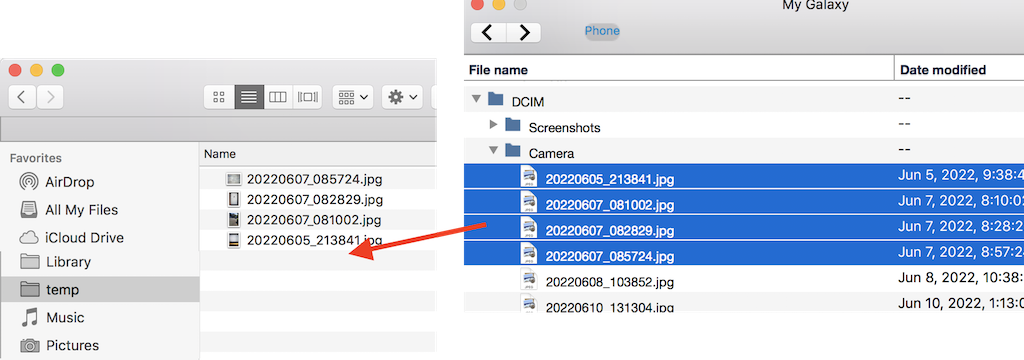
5. Select and drag any phone files from the device file manager to the computer file manager. You see files transferred from your phone to your computer.
⇒ Smart Switch - Transfer Music Files to Phone
⇐ Smart Switch - Manage Files on Phone
2022-09-12, ∼2025🔥, 0💬
Related Topics:

