Deleting a Photo in iPhone Photos App
How to delete a photo from the Camera Roll in my iPhone Photos app?
✍: FYIcenter.com
 If you want to delete a photo from the Camera Roll the in iPhone Photos app,
you can follow these steps:
If you want to delete a photo from the Camera Roll the in iPhone Photos app,
you can follow these steps:
1. Open Photos app and tap on "Albums" near the bottom of the screen. You see your photos listed in different albums.
2. Tap on "Camera Roll" to open the camera roll. You see a list of photo previews displayed.
3. Tap on the photo you want to delete. You see the full photo displayed on the screen.
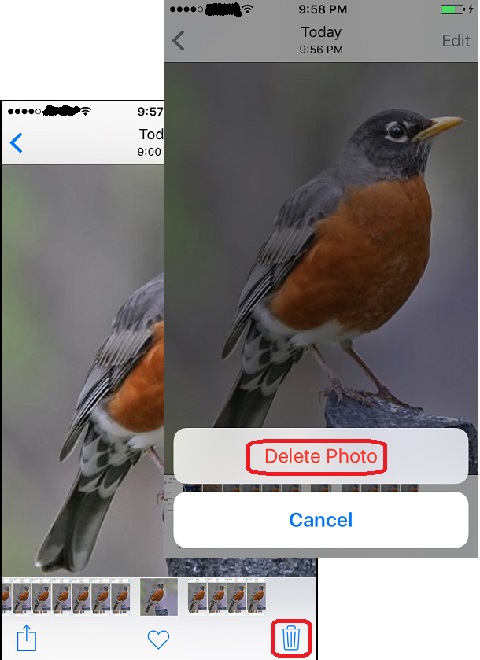
4. Tap on the trash can icon near the bottom right corner of the screen.
 You see the "Delete Photo" confirmation button displayed.
5. Tap on "Delete Photo" to confirm. This photo will be moved to the trash can and it will stay there for 30 days before it gets destroyed.
The picture below shows you how to delete a photo from the Camera Roll in Photos app
on your iPhone:
⇒ Restoring a Deleted Photo in iPhone Photos App
2021-08-13, ∼2947🔥, 1💬
Related Topics:

