Sign In to iCloud on iPhone
How to sign in to iCloud on iPhone?
✍: FYIcenter.com
 You can follow these steps to sign in to iCloud on your iPhone:
1. Make sure that you have your Apple ID and its password ready. If you do not have an Apple ID, create one first.
2. Make sure that your iPhone is connected to a Wi-Fi and to the Internet. iCloud will not work on cellular data connections.
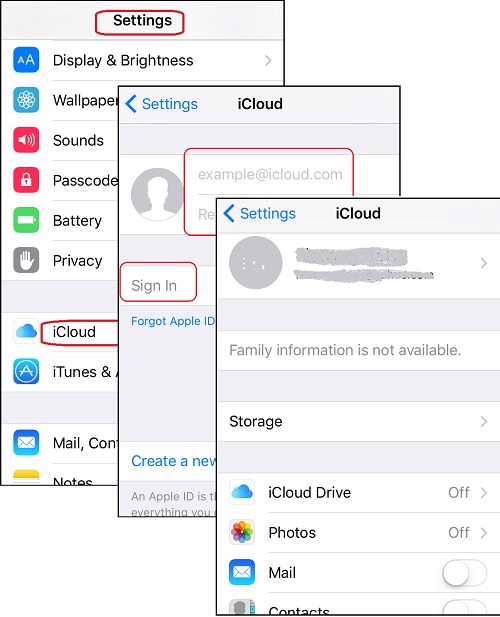
3. On your iPhone, go to "Settings > Apple ID (Profile) > iCloud". You see the iCloud sign in screen showing up.
Note that, iCloud is directly listed on the "Settings" on older iPhones.
4. Enter your Apple ID and password. Then tap on "Sign in". You see the iCloud screen showing up.
Now you can start to use iCloud services on your iPhone.
The picture below shows you how to sign in to iCloud on your iPhone:
2017-04-13, ∼3789🔥, 0💬
Related Topics: